Flikr Photos:
I continued what I was working on last class with Flikr. I have continued to add more photos into sets then putting them onto my Wix website.
I used an HTML widget on Wix
to insert the HTML code of my Flikr sets. Below is the website address
where I got the HTML code for my sets.
To get to this web address
go to your flikr account and go to which set you wish to put on your
website. After you get the set up open it up in a slideshow. Then go to
share and customize the HTML code. Then you just copy the html and put
it into the html widget.
Here is a website to help you with making sets on Flikr:
http://www.steves-digicams.com/knowledge-center/how-tos/online-sharing-social-networking/how-to-create-a-set-within-flickr.html
Problem:
I had noticed that everything on my Home Page would not line up with my background image on my Wix website (http://12mbraley.wix.com/mattbraley). I don't know if it is just the class monitors, but I just noticed it today and it needs to be worked on next class if not before. I don't know what would have caused this because in the Wix editor it looks fine. I am thinking that my background image is actually just not centered to begin with.
Showing posts with label assignments. Show all posts
Showing posts with label assignments. Show all posts
Thursday, March 28, 2013

Monday, January 28, 2013
Resources for 1/28 class
HTML - basic definitions.
A basic HTML intro, from a great web design resource site, W3schools:
http://www.w3schools.com/html/html_intro.asp
HTML elements:
http://www.w3schools.com/html/html_elements.asp
A guide on how to write html using TextEdit (taken from about.com):
If you use a Macintosh, you don't need to buy or download an editor to write HTML. You have a perfectly functional editor built into your operating system -- TextEdit.
For many people this is all the HTML editor they will ever need.
There are only a few steps to creating a Web page with TextEdit:
Open TextEdit
Open a Finder window
Switch to the Applications folder
Scroll down to TextEdit and double-click on it
Change the format to plain text
TextEdit defaults to a rich text format, so you need to switch it to plain text to write HTML
Open the Format tab
Choose "Make Plain Text"
You can also hit Shift-Apple-T to switch to plain text
Start writing your HTML
Remember that you need to be more careful than in an actual HTML editor. You won't have elements like tag completion and validation.
Save your HTML to a file
This is the tricky part. TextEdit normally saves files as .txt. But since you're writing HTML, you need to save the file as .html.
Go to the File menu
Choose Save As... (or Shift-Apple-S)
Change the file extension from .txt to .html
A popup will ask you if you want to append the extension ".txt" to the end. Choose "Don't Append"
Opening an html file in TextEdit(from www.askdavetaylor.com):

Here is a battery of links that may be useful to you in the formatted poem:
Links to CSS text and font info:
http://www.w3schools.com/css/css_text.asp
http://www.w3schools.com/css/css_font.asp
The "span" tag (for modifying elements outside of "p" and "header" tags:
http://www.w3schools.com/tags/tag_span.asp
Web colors:
http://www.w3schools.com/html/html_colors.asp
Link to CSS examples:
http://www.w3schools.com/CSS/css_examples.asp
An online resource for getting the text of a poem:
http://www.bibliomania.com/
Emily Dickinson, defaced via CSS:
http://sncweb.110mb.com/class/EMILY_PLAIN.html
A basic HTML intro, from a great web design resource site, W3schools:
http://www.w3schools.com/html/html_intro.asp
HTML elements:
http://www.w3schools.com/html/html_elements.asp
A guide on how to write html using TextEdit (taken from about.com):
If you use a Macintosh, you don't need to buy or download an editor to write HTML. You have a perfectly functional editor built into your operating system -- TextEdit.
For many people this is all the HTML editor they will ever need.
There are only a few steps to creating a Web page with TextEdit:
Open TextEdit
Open a Finder window
Switch to the Applications folder
Scroll down to TextEdit and double-click on it
Change the format to plain text
TextEdit defaults to a rich text format, so you need to switch it to plain text to write HTML
Open the Format tab
Choose "Make Plain Text"
You can also hit Shift-Apple-T to switch to plain text
Start writing your HTML
Remember that you need to be more careful than in an actual HTML editor. You won't have elements like tag completion and validation.
Save your HTML to a file
This is the tricky part. TextEdit normally saves files as .txt. But since you're writing HTML, you need to save the file as .html.
Go to the File menu
Choose Save As... (or Shift-Apple-S)
Change the file extension from .txt to .html
A popup will ask you if you want to append the extension ".txt" to the end. Choose "Don't Append"
Opening an html file in TextEdit(from www.askdavetaylor.com):
Go to TextEdit --> Preferences... and choose "Open and Save". You'll see:

The key is the first option under "When opening a file": you want to check Ignore rich text commands in HTML files. Check that option, then quit TextEdit.
It turns out you can also do this by manually selecting File --> Open..., choosing the file, and also selecting the option in the Open dialog window of "Ignore rich text commands", but since i'm always double-clicking on files or otherwise launching TextEdit, it's a much easier solution to simply fix the preferences and never worry about it again.
Here is a battery of links that may be useful to you in the formatted poem:
Links to CSS text and font info:
http://www.w3schools.com/css/css_text.asp
http://www.w3schools.com/css/css_font.asp
The "span" tag (for modifying elements outside of "p" and "header" tags:
http://www.w3schools.com/tags/tag_span.asp
Web colors:
http://www.w3schools.com/html/html_colors.asp
Link to CSS examples:
http://www.w3schools.com/CSS/css_examples.asp
An online resource for getting the text of a poem:
http://www.bibliomania.com/
Emily Dickinson, defaced via CSS:
http://sncweb.110mb.com/class/EMILY_PLAIN.html
Thursday, February 12, 2009
What's due next Tues
Due next class:
1. Your two separate pages, both controlled by a single css style sheet, so that they look like two separate pages from the same website.
2. A polished-up version of the homepage design you've decided to pursue, along with a photoshop mock-up of one of the second-level pages.
For using CSS in Dreamweaver, read Chapter 5 of the recommended Dreamweaver book, or for a much less comprehensive view, read this online primer.
Wednesday, February 11, 2009
Due Thursday: more homepage designs
By the beginning of next class, please make adjustments to your initial homepage design, based o any helpful feedback from the crit. If you did a single design, do another homepage design that radically rethinks the look of the homepage (include placing the menus differently, but don't just do that -- try to make the page have the same content, but a much different feel).
On Thursday, we'll start to play around with CSS in Dreamweaver.
On Thursday, we'll start to play around with CSS in Dreamweaver.
Friday, February 6, 2009
Due Tuesday's class: First homepage pass
By the start of next class, have a first pass of your homepage design done. You have a wireframe of all the info that will be on that page -- now, you have to give us an idea what that page will actually look like. Photoshop is probably the best tool to use (and again, those of you who don't have a strong photoshop background, don't worry -- I'm more than happy to take the time to help you out there).
And as a reminder -- the "safe" screen size to shoot for, in figuring out how much of your homepage the viewer will see if they're looking at it with a typical computer setup, is 1024x768 pixels. To give yourself a decent buffer, considering the screenspace the browser bar will take up, think of that initial "footprint" of your site as falling within 900x700 pixels. Your entire homepage doesn't necessarily have to fit within that footprint, but that's more or less what the typical viewer will see of it when s/he first opens your site. To get an idea of that sizing, create your photoshop file at 900 pixels wide by 700 pixels high, at 72 dpi. And then work outward from there.
For those of you working on portfolio sites, here are the good reference sites Chris Maniet dug up:
http://www.arludik.com/index3.htm
http://chriscmerritt.com/
http://grafikas.com/index.html
http://digitalmash.com/photo/
http://lukelarsen.com/
http://www.huddletogether.com/projects/lightbox2/
Tuesday, February 3, 2009
Due on Thursday's class
Make a flowchart and wireframe for your own site (or, if you already did that for today, switch it around and do a flowchart and wireframe for one of the sites you picked as being in a similar "genre"). We'll kick those around next class.
Friday, January 30, 2009
Due next class (Tuesday) -- wireframe and flowchart
By next class, have:
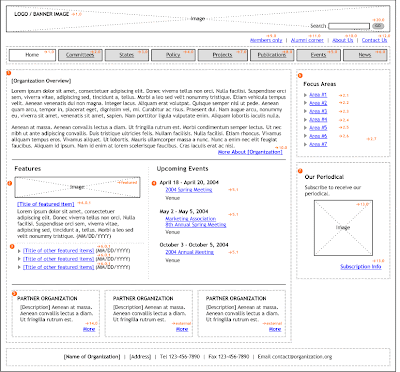
1. A website wireframe prepared for one of the sites you picked that is in the same "genre" of the site you'd like to make, their first and second level pages. A wireframe example (click to enlarge):
2. Make a website flowchart as well (you can do a google image search for "website wrireframe" and "website flowchart" to see examples). A flowchart example (click to enlarge):

Be ready to talk about the sites you analyzed (via drawing up the wireframe and flowchart) with your fellow classmates next class. Draw up a list: what were the elements you liked about the site? What are the elements you disliked about the site? What elements would you like to incorporate into your own site?
As I said in class, I usually use illustrator for doing up wireframes and flowcharts -- if you have any familiarity with Illustrator, it's a good tool for dealing with text, lines, and boxes. There's a tutorial here that has some good time on wireframing in Illustrator.
Photoshop would be fine too -- though if you're unfamiliar with both Photoshop and Illustrator, I'd recommend just drawing these out by hand. Just make sure the names for all the navigation and content are legible. It might help to use graph paper.
As a recap (and for those who weren't in class): the wireframe is to give an idea of all the pieces of content you need on a particular page. There might be some layout information in it, but it's far more about content than design. And since most sites have homepages that function differently than their interior pages, it's necessary two have at least two wireframes (for first and second tier page functionality) to give an idea of what's going on.
A flowchart, on the other hand, doesn't give an idea of everything that's on a page, but rather gives an idea of how the site as a whole is organized -- how the menu breaks the site into various sections, that may or may not have subsections. You don't need to draw out every single page, but you do need to draw out each section or subsection of your site.
The reasoning behind this exercise is to get you to dig deeply into the site architecture of a site that is trying to solve the same sorts of problems you'll want to solve for your own website. It will hopefully give you some ideas on how to organize your own site (or how not to organize it, as the case may be).
1. A website wireframe prepared for one of the sites you picked that is in the same "genre" of the site you'd like to make, their first and second level pages. A wireframe example (click to enlarge):

2. Make a website flowchart as well (you can do a google image search for "website wrireframe" and "website flowchart" to see examples). A flowchart example (click to enlarge):

Be ready to talk about the sites you analyzed (via drawing up the wireframe and flowchart) with your fellow classmates next class. Draw up a list: what were the elements you liked about the site? What are the elements you disliked about the site? What elements would you like to incorporate into your own site?
As I said in class, I usually use illustrator for doing up wireframes and flowcharts -- if you have any familiarity with Illustrator, it's a good tool for dealing with text, lines, and boxes. There's a tutorial here that has some good time on wireframing in Illustrator.
Photoshop would be fine too -- though if you're unfamiliar with both Photoshop and Illustrator, I'd recommend just drawing these out by hand. Just make sure the names for all the navigation and content are legible. It might help to use graph paper.
As a recap (and for those who weren't in class): the wireframe is to give an idea of all the pieces of content you need on a particular page. There might be some layout information in it, but it's far more about content than design. And since most sites have homepages that function differently than their interior pages, it's necessary two have at least two wireframes (for first and second tier page functionality) to give an idea of what's going on.
A flowchart, on the other hand, doesn't give an idea of everything that's on a page, but rather gives an idea of how the site as a whole is organized -- how the menu breaks the site into various sections, that may or may not have subsections. You don't need to draw out every single page, but you do need to draw out each section or subsection of your site.
The reasoning behind this exercise is to get you to dig deeply into the site architecture of a site that is trying to solve the same sorts of problems you'll want to solve for your own website. It will hopefully give you some ideas on how to organize your own site (or how not to organize it, as the case may be).
Tuesday, January 27, 2009
Resources, and Assignment for Thursday
Your assignment for Thursday's class:
Post a one or two paragraph description of the website you'd like to make for the first major "website project" for this class, and provide at least four links to websites that are in the same "genre" of the website you'd like to make -- make sure at least two of the links are sites you think are designed particularly well. In your paragraph, be sure to include who you think the audience for your website will be.
Some resource links:
The SPAN tag:
http://www.w3schools.com/TAGS/tag_span.asp
http://www.webheadstart.org/xhtml/span/
HTML linking syntax:
http://www.w3schools.com/html/html_links.asp
Link styles with css:
http://www.echoecho.com/csslinks.htm
Free web hosting:
http://www.www.110mb.com
Here's the Borges story formatted as a hypertext story:
http://www.geocities.com/papanagnou/cover.htm
And, for our in-class assignment today, here's a paragraph of Borges:
I said out loud: I must flee. I sat up noiselessly, in a useless perfection of silence, as if Madden were already lying in wait for me. Something--perhaps the mere vain ostentation of proving my resources were nil--made me look through my pockets. I found what I knew I would find. The American watch, the nickel chain and the square coin, the key ring with the incriminating useless keys to Runeberg's apartment, the notebook, a letter which I resolved to destroy immediately (and which I did not destroy), a crown, two shillings and a few pence, the red and blue pencil, the handkerchief, the revolver with one bullet. Absurdly, I took it in my hand and weighed it in order to inspire courage within myself. Vaguely I thought that a pistol report can be heard at a great distance. In ten minutes my plan was perfected. The telephone book listed the name of the only person capable of transmitting the message; he lived in a suburb of Fenton, less than a half hour's train ride away.
Thursday, January 22, 2009
Due next class (Tuesday)
1. Bring in the html page of your poem, so we can look at them in class.
2. Read the Borges story I handed out, "The Garden of Forking Paths"
3. Read the below article, which uses that story as a jumping-off point:
http://www.nomadpete.com/files/fivestanding/hype/hyper-text.htm
4. Write a short paper answering these questions (in response to the story and the linked reading):
a. List three ways in which reading on the internet is different than reading from a book.
b. How is the web-reading experience "non-linear"? And how does linear thinking differ from non-linear thinking?
c. In what way does non-linear reading invite us to be the "author" of texts that we read, even if we didn't in fact write those texts?
Some resources for current assignments
A basic HTML intro, from a great web design resource site, W3schools:
http://www.w3schools.com/html/html_intro.asp
A guide on how to write html in TextEdit:
http://webdesign.about.com/od/textedit/a/aa122006.htm
Here is a battery of links that may be useful to you in the formatted poem:
Links to CSS text and font info:
http://www.w3schools.com/css/css_text.asp
http://www.w3schools.com/css/css_font.asp
Web colors:
http://www.w3schools.com/html/html_colors.asp
Link to CSS examples:
http://www.w3schools.com/CSS/css_examples.asp
An online resource for getting the text of a public domain poem:
http://bartleby.com/
Emily Dickinson, defaced via CSS:
http://sncweb.110mb.com/class/EMILY_PLAIN.html
Tuesday, January 20, 2009
Welcome, & first assignment
Welcome to the blog for the web design class.
You have one assignment to bring in for next class, this Thursday.
Make a post on this blog. You should: a) write a short paragraph about yourself, b) include a picture of yourself, and c) provide one link -- it could be a link to your own website, or a link to a website you like.
Lastly, here's the book I highly recommend you purchase as reference for the class:

Subscribe to:
Posts (Atom)